

A buyer reaches checkout ready to pay, but Klarna isn't there. The cart looks fine, the Stripe integration appears connected, and nothing on the page explains what went wrong. Often, the issue isn't a broken button: Stripe may be hiding Klarna because the buyer's location, currency, or cart value doesn't qualify.
A safe Stripe Klarna integration starts with choosing the right Stripe surface, then sending useful order information and treating server-side payment confirmation as the only signal to fulfill. That distinction matters even more on a platform: a successful-looking return page doesn't prove a payment succeeded.
Table of Contents
- Pick the Right Klarna Surface on Stripe
- Turn On Klarna in the Stripe Dashboard
- Build the Server-Side Klarna Checkout Flow
- Send Address and Order Data Klarna Accepts
- Fix Missing Buttons and Failed Payments
- Launch Only After Stripe Confirms Payment
Pick the Right Klarna Surface on Stripe
Start with the checkout experience and the order data you need, not just the quickest interface to put on a page. Stripe Checkout and Payment Links are hosted options, so Stripe handles much of the payment UI. The Payment Element keeps the payment form within your site and gives you more control over layout. A direct Payment Intents integration gives you the most control over the flow and the data you send.
No surface can force Klarna to appear for every buyer. Stripe applies eligibility checks using factors such as customer location, currency, and cart value, and it only displays Klarna when those conditions qualify. Eligible merchants can activate Klarna through Stripe without a separate Klarna application, but activation doesn't override transaction eligibility.
| Stripe surface | UI control | When Klarna shows | Order data you can send | Use it when |
|---|---|---|---|---|
| Stripe Checkout | Hosted by Stripe | Automatic from location, currency, and cart value | Line items on the Session | You want the fastest consumer checkout |
| Payment Links | Hosted, no-code | Same automatic eligibility | Line items on the link | You sell a fixed offer without custom code |
| Payment Element | Embedded in your page | Stripe still gates eligibility | Line items if you pass them | You need layout control but not a custom Klarna flow |
| Payment Intents API | Fully custom | You confirm the method yourself | Full Supplementary Purchase Data, including marketplace, travel, and subscriptions | You need custom UX, recurring billing, or stronger fraud and dispute context |
Passing line items helps make the order legible in the Klarna app. Shipping and billing details can add useful context for risk decisions, even when they're optional for the Stripe surface you choose. A checkout can technically take payment while still providing too little detail to support useful reconciliation or a dispute response.
The Stripe Klarna ecosystem overview describes the trade-off: Checkout and Payment Links prioritize speed, the Payment Element adds UI control, and the direct Payment Intents path supports fully custom Klarna flows and full Supplementary Purchase Data for scenarios such as marketplaces, travel, and subscriptions. For background on how Stripe fits into a payment setup, see this guide to Stripe payment gateways.
Use Checkout unless you need custom UI, recurring billing, or richer order data. That default limits implementation complexity while leaving a clear reason to move to a more customized surface if your product needs it.
Turn On Klarna in the Stripe Dashboard
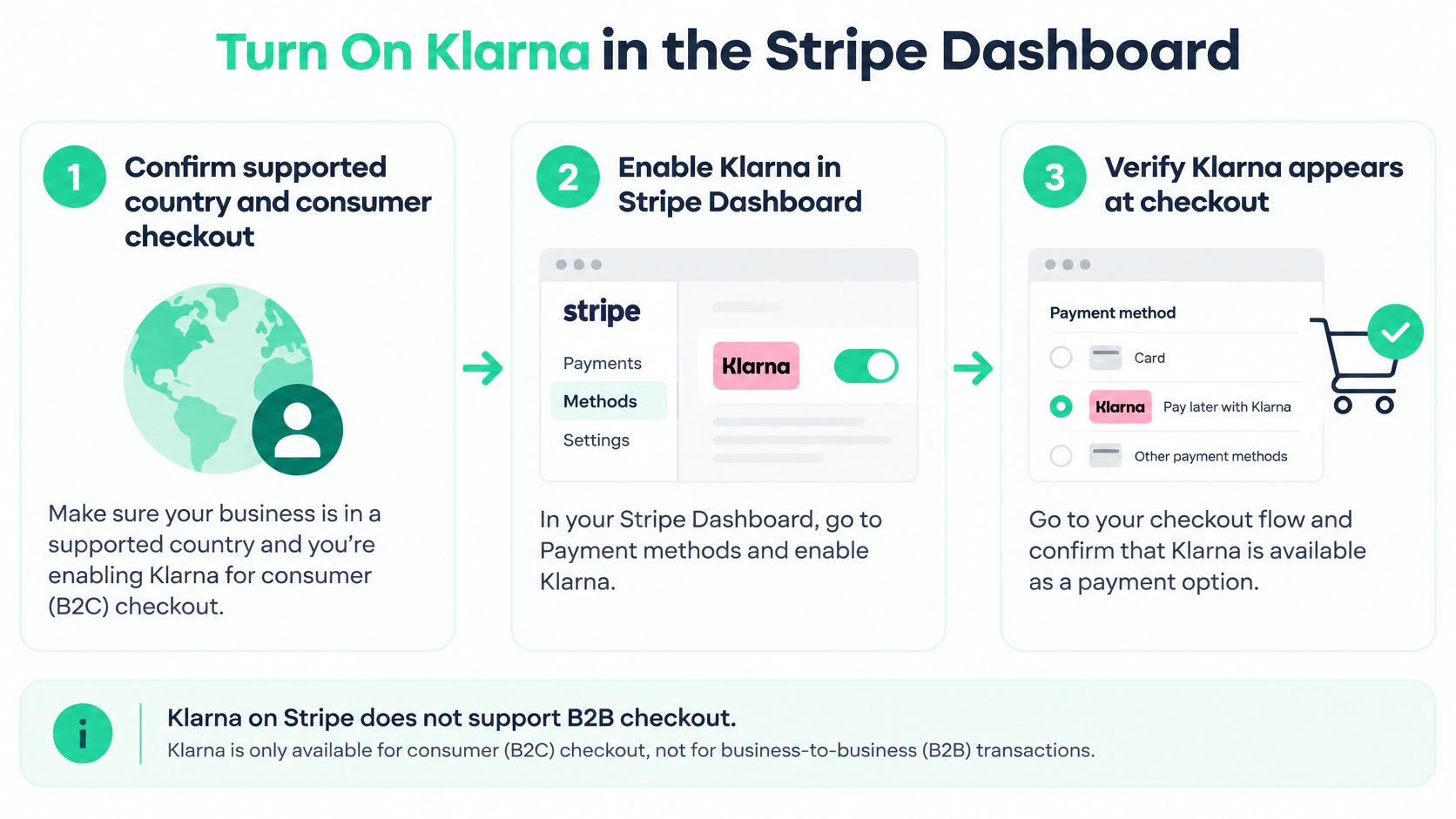
Before writing code, check that Klarna can be offered for the business and checkout you're configuring. Klarna on Stripe doesn't support B2B payments, so an invoice checkout for a business buyer isn't the right use case.
The setup can be done from the Stripe Dashboard:
- Confirm the account and checkout are eligible. Check the Stripe account's country and make sure the payment is for a consumer purchase, not a B2B payment. The initial 2021 launch included 20 markets, among them the United States, United Kingdom, Germany, France, Spain, Italy, the Netherlands, Sweden, Denmark, Finland, Austria, Belgium, Estonia, Greece, Ireland, Latvia, Lithuania, Norway, Slovakia, and Slovenia, according to Stripe's Klarna payments overview. Availability has since expanded: by January 2025, Stripe-powered businesses in 25 countries could offer Klarna.
- Enable Klarna in Payment methods. Open Stripe Settings, go to Payment methods, and switch Klarna on for the configuration your Checkout Session or Payment Intent will use. Eligible merchants don't need a separate Klarna application, onboarding flow, or underwriting step just to activate it through Stripe.
- Match the presentment currency to the buyer's country. Choose a currency that makes sense for the customer's market. A supported business location alone doesn't guarantee that Klarna will appear for every buyer or purchase.
- Save the right configuration. If your Stripe account has multiple payment-method configurations, confirm Klarna is enabled on the one attached to the checkout you're testing.
Check the actual checkout
After saving, test a consumer checkout with a buyer location, currency, and cart value that should qualify. If Klarna is missing, first examine those conditions and the payment-method configuration before changing code. Stripe determines whether the option appears based on eligibility; a hidden method doesn't necessarily indicate a failed integration.
The wider rollout shows that this activation path is in use at scale: Stripe reported that more than 200,000 businesses had enabled Klarna on Stripe. That adoption is useful context, not a prediction of what a particular business will achieve. Your own checkout still needs testing with the markets, currencies, and purchase types you intend to support.
Build the Server-Side Klarna Checkout Flow
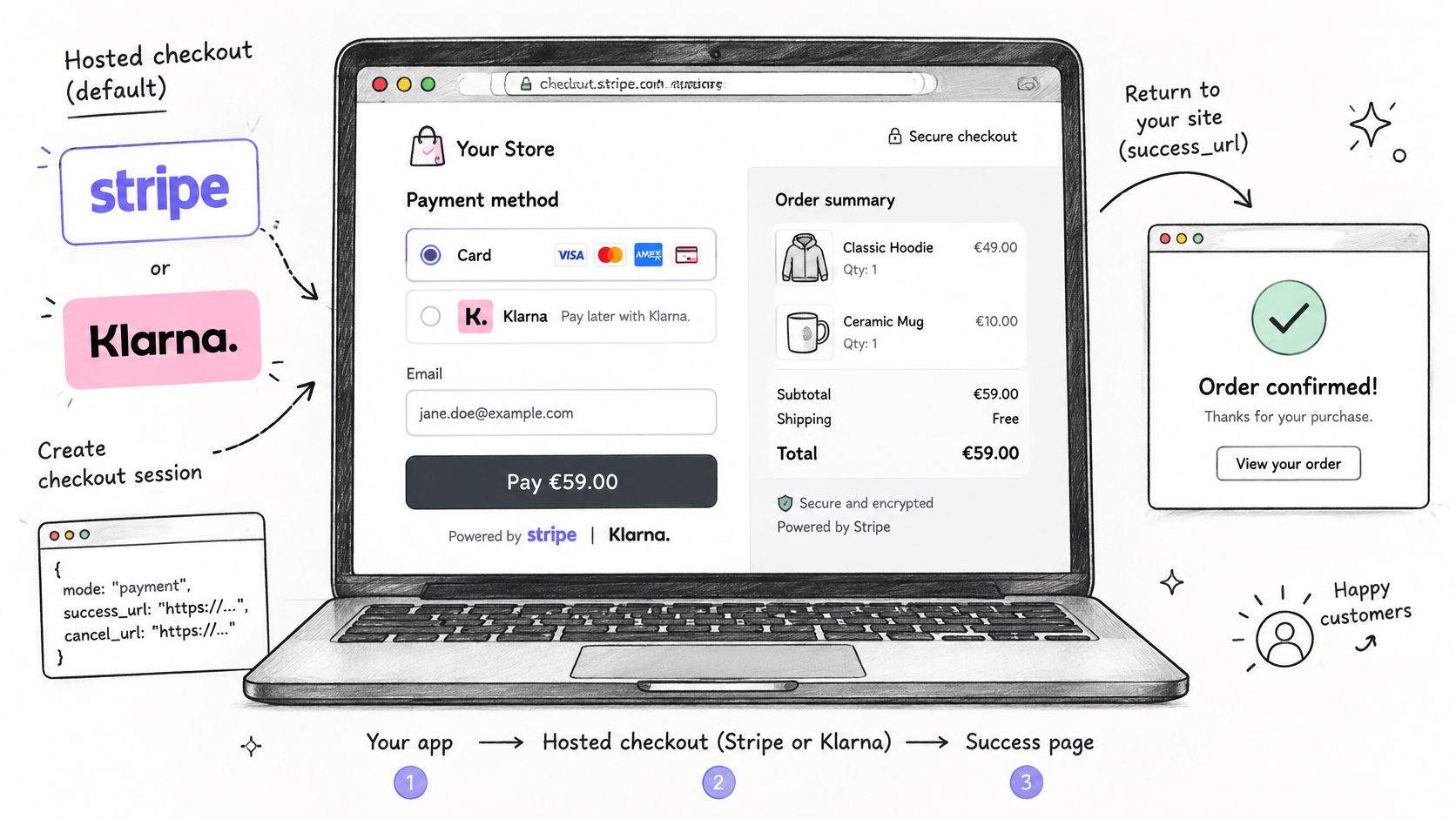
A buyer can complete Klarna's redirect and land back on your site while the payment is still pending or has failed. Treat the return as navigation, not proof of payment. Keep payment decisions on your server, whether you use hosted Stripe Checkout or build a direct Stripe payment integration.
Create the Session with accurate order details
Create a Checkout Session with the correct currency, amount, customer email, and line items. Keep those values aligned with the order your application records. If the cart changes, update both the order and the Session so Stripe does not present one purchase while your system tracks another.
Because Klarna redirects the buyer, include a return URL that leads to a clear order-status page. That page can show that payment is being checked, but only a verified payment_intent.succeeded webhook should trigger fulfillment.
Klarna may decline a transaction after assessing factors such as risk, transaction amount, or outstanding debt. In that case, leave the order unpaid and let the buyer choose another payment method.
Verify events and make retries safe
On your server, verify each Stripe webhook and act on payment_intent.succeeded as the fulfillment signal. Store the Stripe event ID and make the handler idempotent. If Stripe delivers the same event again, your system should recognize it and avoid fulfilling the order twice.
A buyer may close the Klarna flow, return late, or never return. Keep an abandoned Session unpaid, and use your order flow to expire or ignore it. Browser query parameters, return-page messages, and customer screenshots are not payment confirmation.
For connected-account payments, align payment ownership with the account processing the charge. On Fundl, payments go directly through Stripe to the project Creator's connected Stripe account at the time of payment. Fundl does not hold or custodise funds.
Before launch, test successful payments, declines, abandoned redirects, and duplicate event delivery. Testing and monitoring connected applications helps teams check that each part of the payment flow behaves as expected. The Stripe Klarna documentation describes the Checkout approach, redirect behavior, and server-side payment checks.
Send Address and Order Data Klarna Accepts
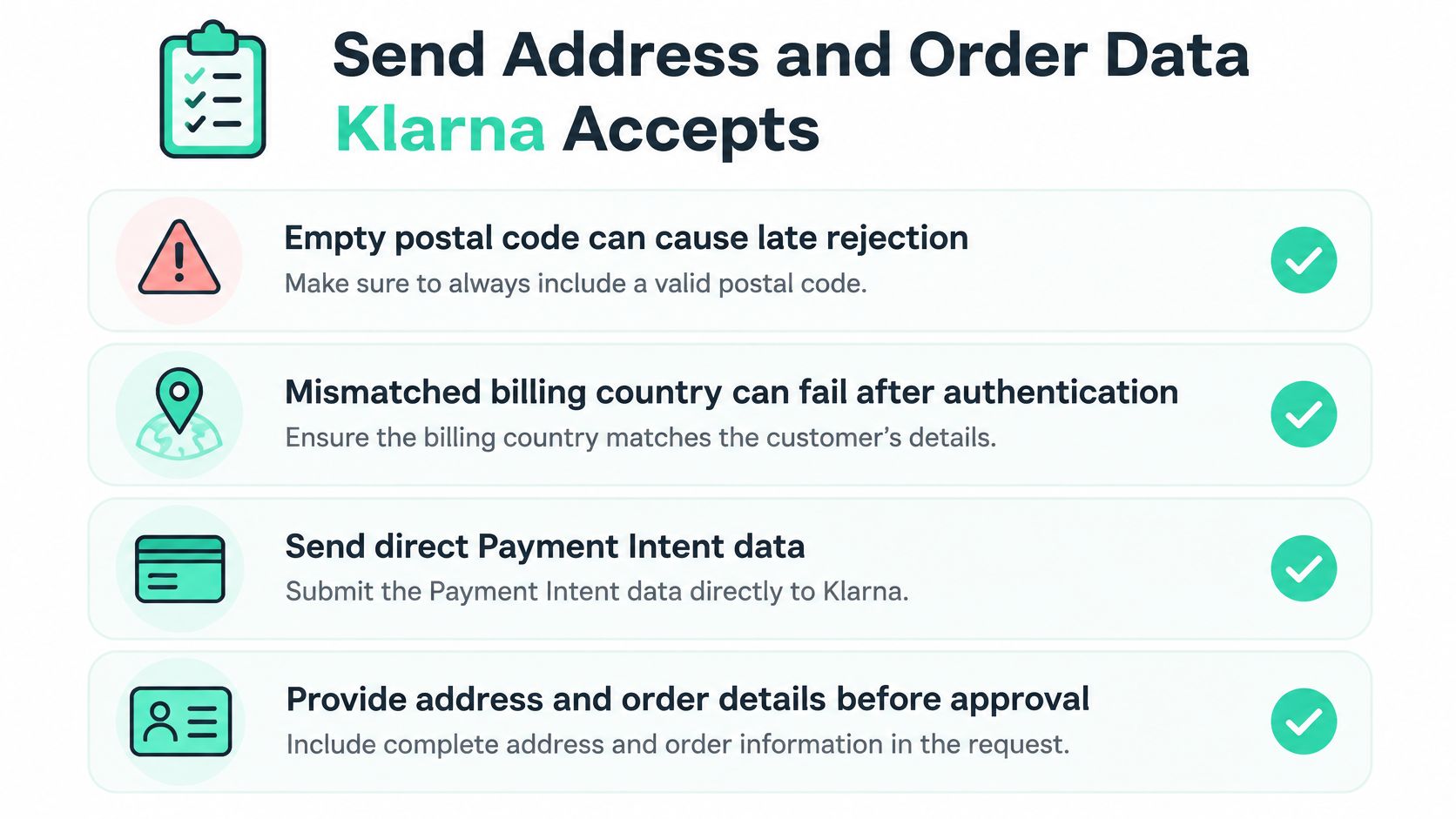
A buyer finishes the Klarna step and returns to your site, but the payment is rejected because the postal code is missing or the billing country does not match. That leaves the order unpaid and support with an incomplete record. For a direct Payment Intents integration, validate address and order details before creating or confirming the payment.
The fields Klarna needs depend on the Stripe integration path and the purchase. In a direct integration, check the applicable requirements in the Stripe and Klarna integration checklist before deciding which fields to require. The checklist covers shipping and billing details and warns that incorrect or mismatched addresses can contribute to late rejection and lower acceptance. Collect the relevant details early, then normalize country, postal code, email, phone, and address values rather than trying to repair incomplete data after confirmation.
For this custom path, keep these five checks in view:
- Validate the shipping address. When the integration requires shipping details, send a name, address line 1, city, country, and postal code.
- Use one billing country. Set
payment_method.billing_details.address.countryto the country collected from the buyer. Keep that value consistent through the redirect and compare it with the successful payment data. - Keep one order reference. Reuse the same customer-facing order ID in your application and Stripe records. A shared reference helps your team find the purchase when a buyer asks about it.
- Send readable order details. Include structured line items so Klarna can display the purchase clearly.
- Reconcile the completed payment. After a verified
payment_intent.succeededevent, compare the billing country on the successful Charge with the country on your order record. A browser return is not proof of payment.
Make the purchase understandable
For marketplace, travel, or subscription purchases, include the Supplementary Purchase Data supported by your direct integration. Clear line items and relevant purchase details give Klarna and your team more context for the transaction, reconciliation, and disputes.
The checklist does not provide a universal acceptance-rate benchmark. Track your own results by country, currency, contribution amount, device, and rejection reason. For broader payment-system safeguards, see this guide to secure payment integration for growing brands.
Fix Missing Buttons and Failed Payments
A useful test run should reproduce failures on purpose, not just confirm that one happy-path payment works. In test mode, try an eligible cart that should show Klarna, a country or currency that should hide it, a risk decline, an abandoned redirect, and a duplicate webhook delivery. Only a verified successful payment should trigger fulfillment.
| What you see | Likely cause | What to do |
|---|---|---|
| Klarna button missing | Location, currency, or cart value failed eligibility | Test a supported country-currency pair and a qualifying amount |
| Decline after Klarna's screen | Risk, amount, or outstanding debt | Don't fulfill; offer another payment method |
| Browser success, order unpaid | return_url treated as payment |
Fulfill only on payment_intent.succeeded |
| Order fulfilled twice | Duplicate webhook delivery | Store the event ID and ignore repeats |
| Late rejection | Missing or mismatched billing country, email, or postal code | Require those fields before confirmation |
| Buyer never returns | Abandoned Klarna redirect | Expire the Session and leave the order unpaid |
| Country differs after redirect | Buyer or client changed country | Lock the country collected before redirect |
| Business invoice sent to Klarna | B2B payment, which Klarna doesn't support | Use a consumer checkout or another method |
Capture enough detail to diagnose the next failure
Record the rejection reason, country, currency, amount, and device with each relevant payment attempt. Add the Stripe event ID to your internal order record so you can distinguish an original event from a duplicate delivery. These details let an engineer trace the actual cause instead of guessing from a customer's screenshot or a vague “payment failed” message.
The test script should exercise both sides of the system: Stripe's eligibility decision at checkout and your server's decision to fulfill. Confirm that declined, abandoned, and ineligible attempts leave the order unpaid, and that duplicate events don't repeat the fulfillment action.
Don't launch until both the risk-decline case and the duplicate-webhook case behave correctly.
Launch Only After Stripe Confirms Payment
A production launch should have a clear gate. Enable Klarna on the live payment-method configuration, create Sessions or Payment Intents with accurate currency, amount, customer email, and line items, and make the server fulfill only after it verifies payment_intent.succeeded or an equivalent successful Checkout event. Before launch, test both a risk decline and a duplicate webhook delivery.
Train support to apply the same standard as the application: a screenshot of Klarna's return page isn't proof of a paid order. If a buyer says they completed checkout but your records show no verified success event, keep the order unpaid while the team checks Stripe's payment and event records.
For a Fundl creator, connect a valid Stripe account before accepting contributions, because the contribution is charged on that account. Fundl processes payments through the creator's connected Stripe account rather than holding creator funds. A platform fee is deducted from each successful contribution before the remainder is transferred to the Creator, so keep the contribution record, Stripe event, and displayed amount aligned.
Fundl's verified traction page is free to create and doesn't require backers, but a live contribution still needs a valid connected Stripe account and a correctly configured payment flow. For more on the distinction between a visible return and a confirmed payment, see this guide to Stripe payment verification.
After setup, run one small live consumer contribution from a supported country. Check that the verified Stripe event ID, amount, currency, and billing country match the contribution record before inviting a wider audience. If the connected Stripe account becomes invalid, pause new contributions until it's restored, and describe Klarna as conditional on buyer location, currency, and cart value.
Fundl helps creators present verified traction and receive contributions through their own connected Stripe accounts, without platform-held escrow. If you're preparing a Stripe Klarna integration for a creator-funded project, visit Fundl to create a traction page and connect your payment flow.