
You pasted the analytics snippet into your homepage, opened Realtime, and watched your visit appear. Then someone bought your product, and the checkout report stayed empty. The payment happened on another domain, the confirmation page used a different template, and neither received the tag.
That's a common starting point for Google Analytics integration: something is collecting data, but you can't yet explain what's missing or counted twice. A useful setup goes beyond installation. You should be able to replay a customer journey, inspect consent behavior, reconcile a payment, and tell a backer which numbers are observed and which are modeled.
Table of Contents
- Choose One Collection Path Before You Tag
- Install GA4 Across Every Page That Matters
- Wire Consent Without Pretending the Funnel Is Complete
- Send Events Once and Prove the Counts
- Publish Only the Counts You Can Defend
Choose One Collection Path Before You Tag
The missed checkout isn't necessarily an event problem. It may be a collection problem: your marketing site, application, and checkout don't share a deliberate measurement setup. Before adding another tag, decide which tool owns collection on each surface.
GA4 is the property to create now, not Universal Analytics. The Google Analytics overview records Universal Analytics' retirement on July 1, 2023, and cites an August 2023 estimate placing GA4 on approximately 13.5 million websites. Its event-based approach lets you measure actions such as registration, activation, and purchases rather than treating page visits as the whole product story.
Which GA4 collection method fits the surface
| Method | Covers | Choose it when | Usual miss |
|---|---|---|---|
Google tag (gtag.js) |
One website | Single site, few events, no tag manager | Snippet missing on checkout or thank-you page |
| Google Tag Manager | Site, subdomains, shared pages | Consent banner plus many events | Container left unpublished or wrong G- ID |
| Firebase SDK | iOS and Android | Native or hybrid app with a GA4 link | App stream not linked, so app and web reporting become separated |
| Measurement Protocol | Server-side events | Purchases or signups the browser never sees | Missing client_id or attribution context leaves the event disconnected from acquisition |
For a small marketing website, the Google tag can be enough. You still need a consent-aware implementation where applicable, even if you don't use a tag manager or consent platform.
For a product with a marketing site, logged-in dashboard, and public traction page, Google Tag Manager makes shared triggers and consent controls easier to manage. It doesn't make tracking accurate automatically. Someone still has to publish the container, choose the correct Measurement ID, and remove competing installations.
Keep related activity together
Use a shared web stream for related website surfaces where appropriate, rather than creating a property for every subdomain. Add the relevant Firebase app streams to the same GA4 property when the app belongs to the same product. A shared property brings reports together, but it doesn't automatically identify the same person across devices.
Reserve Measurement Protocol for suitable server-side activity, such as a confirmed payment webhook. It complements browser collection; it isn't a shortcut around consent or a guarantee of attribution.
A broader data-source integration plan helps separate audience measurement from payment and product records before those systems get mixed together.
Practical rule: Write down the G- ID, every surface it must cover, and the customer journey you'll replay before anyone installs a tag.
Install GA4 Across Every Page That Matters
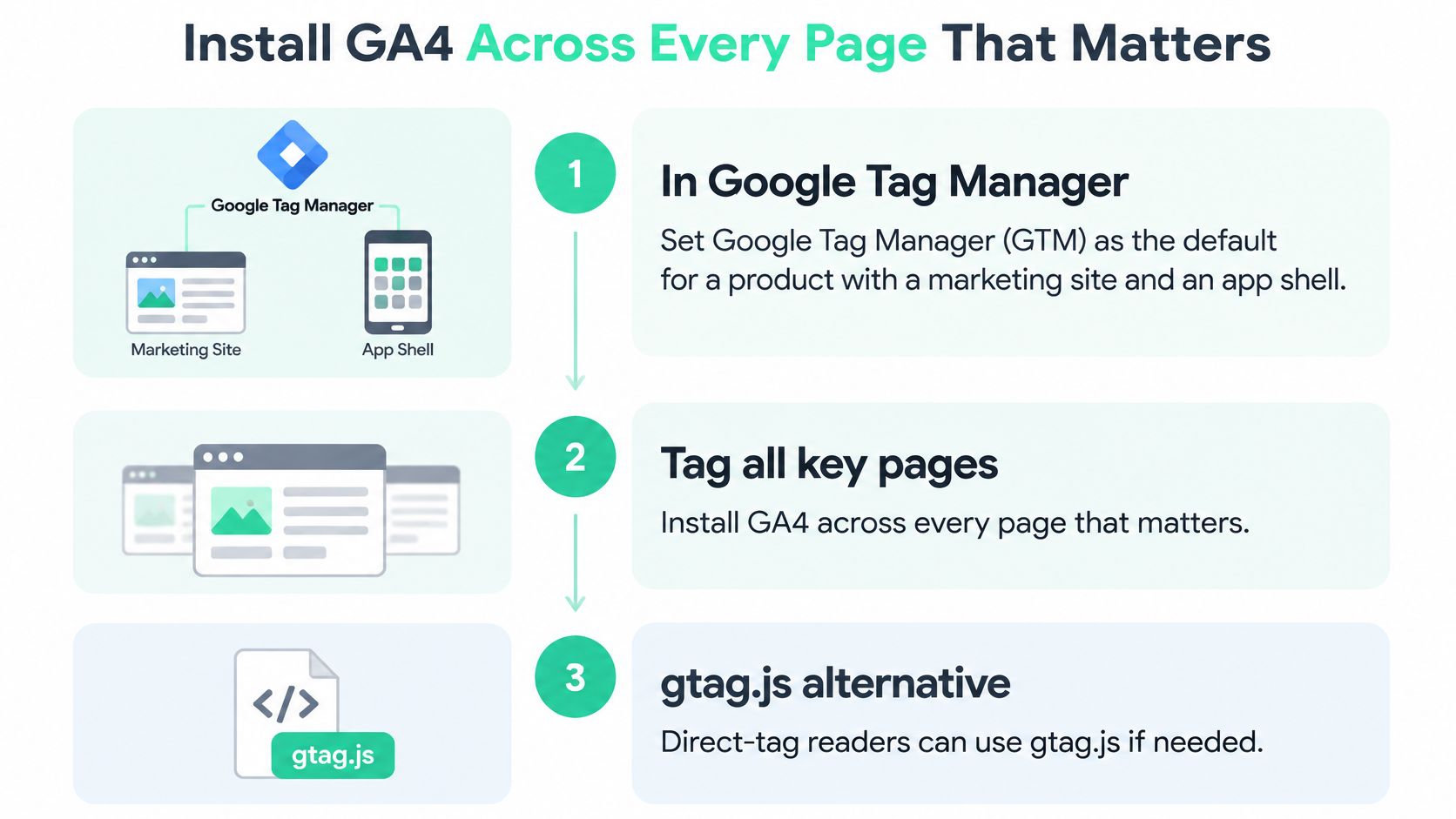
Use Google Tag Manager as the default when your product spans a marketing site and an app shell. If you choose gtag.js instead, install the direct Google tag across the equivalent surfaces and don't also send the same activity through another installation.
Keep the installation map visible while you work.
Build and publish the collection layer
Create the property and web stream. In GA4 Admin, create the property, select the reporting time zone and currency, and create a web data stream. Copy its Measurement ID. Review enhanced measurement and keep only automatic events you intend to use, so you don't later rebuild the same behavior with custom triggers.
Configure the Google tag in Tag Manager. Create a Google tag using that Measurement ID. Use an appropriate all-pages initialization trigger, with consent defaults established before measurement executes. Preview the configuration, then publish the container. A working preview doesn't mean your visitors have the published version.
Install the container across the website. Put the supplied head snippet high in the document head and its companion snippet where the installation instructions specify. Include the marketing templates, logged-in app shell, and relevant subdomains. Check for an existing CMS analytics integration before adding another tag.
Connect native app collection separately. Add the Firebase SDK to your iOS or Android app and link it to the intended GA4 property. Confirm that the corresponding app stream appears alongside the web stream. A website container doesn't instrument a native app.
Replay the journey in a fresh browser session. Visit the homepage, registration screen, and post-purchase or post-contribution destination. Use Realtime as a smoke test, then inspect the event sequence and session continuity. Don't infer a successful installation just because your homepage visit appears.
Preserve the journey through checkout
For a journey across domains you control and can tag, open the web stream's Google tag settings and use Configure your domains to establish cross-domain measurement. Confirm that navigation preserves the necessary linker information.
A hosted payment page is different. You may not control its templates or be able to install your container there. In that case, preserve the journey through the supported checkout integration, return page, and payment confirmation mechanism rather than assuming cross-domain configuration can tag an inaccessible page.
Use List unwanted referrals for payment hosts that shouldn't replace the original acquisition source. If a checkout return appears under the payment provider instead of the campaign, Data Hunters Agency's guide to fix referral issues in Google Analytics provides relevant troubleshooting context. Referral exclusion and cross-domain measurement solve different problems.
Define internal traffic in Admin and test its filter before activation. Keep your audit device outside the exclusion, or deliberately account for its exclusion during testing.
Before creating custom events, complete a coverage checklist:
- Acquisition pages: Campaign landing pages and the homepage.
- Product surfaces: Registration, login, dashboard, and connection screens.
- Public pages: Shared traction or project pages.
- Payment destinations: Checkout entry and confirmation pages you control, with inaccessible hosted steps documented.
Wire Consent Without Pretending the Funnel Is Complete
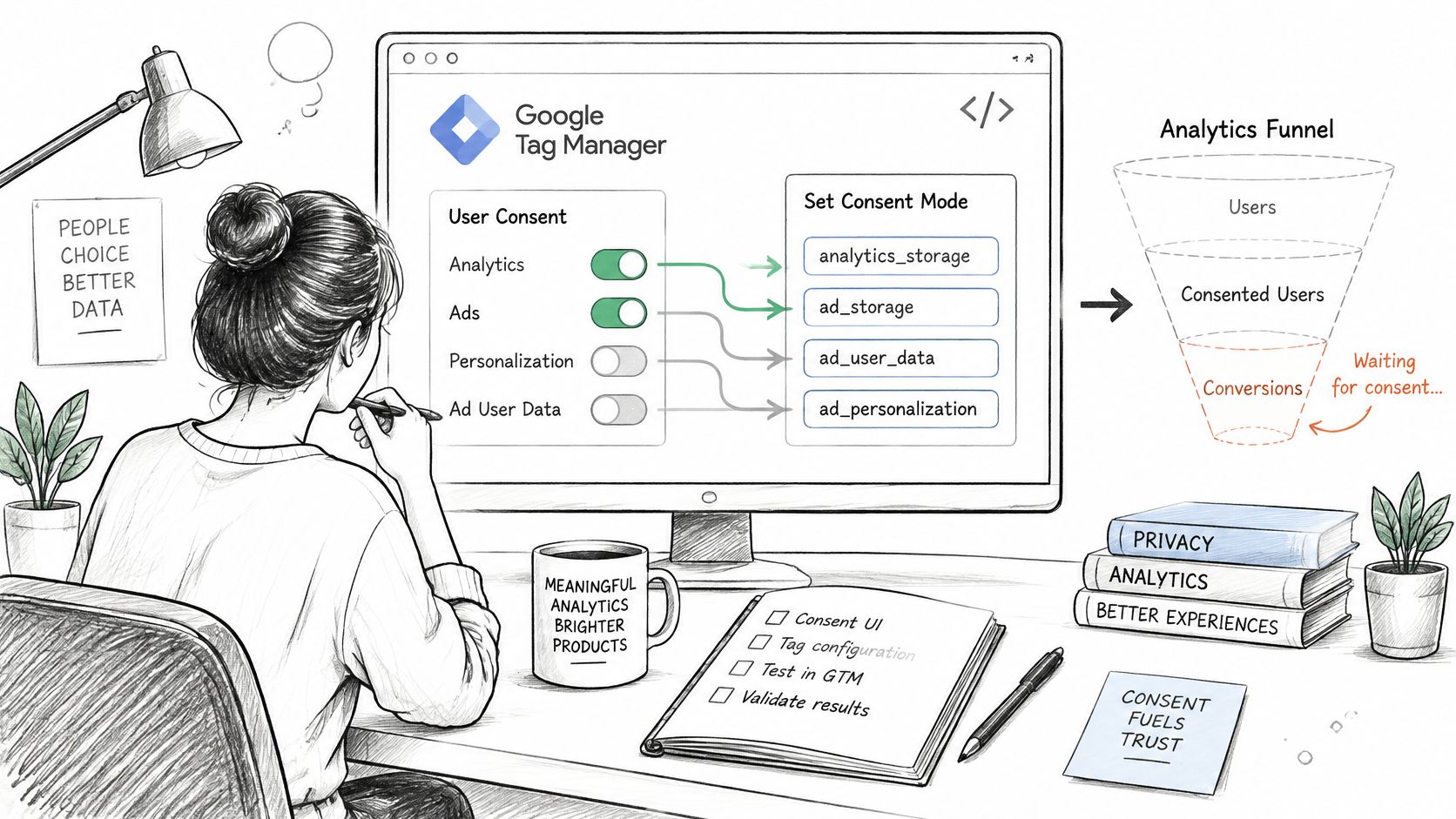
Consent belongs in the tag design, not in a banner added after launch. Your consent platform needs to communicate the visitor's choice to the collection layer before tags behave as though permission has been granted.
Use the consent setup as a separate release check, not a visual check of the banner.
Choose a mode deliberately
Basic Consent Mode blocks Google tags until the visitor interacts with the consent mechanism and permission allows them to run. This can be easier to reason about, but it leaves less information available for measurement.
Advanced Consent Mode loads Google tags with consent defaults and adjusts their behavior according to the visitor's state. Denied consent doesn't mean normal identifier-based tracking continues. This approach requires careful configuration and privacy review, particularly around what requests contain before permission.
Neither mode makes a deployment compliant by itself. Document regional defaults, the purposes offered in the banner, and how a visitor withdraws permission.
Consent signals to pass to Google tags
| Signal | Controls | Set when |
|---|---|---|
analytics_storage |
Analytics cookies and measurement | Granted only after the visitor accepts analytics |
ad_storage |
Advertising cookies | Granted only after the visitor accepts advertising cookies |
ad_user_data |
User data sent for ads measurement | Expected for ads measurement consent; default denied where opt-in applies |
ad_personalization |
Personalized advertising | Granted only after explicit personalization consent |
Test behavior, not just button clicks
Test granted, denied, and withdrawn states in browser network logs and Tag Assistant, with DebugView where events are available. Inspect whether identifiers or cookies appear before permission, whether acceptance updates the state, and whether withdrawal changes subsequent behavior.
The failures point in opposite directions. Sending full identifiers too early creates privacy exposure; leaving consent denied after acceptance suppresses legitimate measurement. A banner that looks correct can hide either mistake.
For a visual walkthrough, use the video alongside your own browser-level checks.
Google's Consent Mode impact guidance reports recovery of about 65% of conversions otherwise lost through consent choices, but that's an aggregate Google-reported result, not a promise for your product; impact evaluation generally requires at least seven full days and sufficient data.
Before rollout, save a baseline of consent acceptance, measured sessions, registrations, and completed payments. Record configuration changes alongside those metrics so you don't mistake improved measurement for newly acquired customers.
A higher reported conversion total after a consent change doesn't establish that more people bought.
For a low-volume product, treat modeling as conditional rather than expected. Keep observed activity distinguishable from estimates, and don't use a modeled total as your payment ledger.
Send Events Once and Prove the Counts
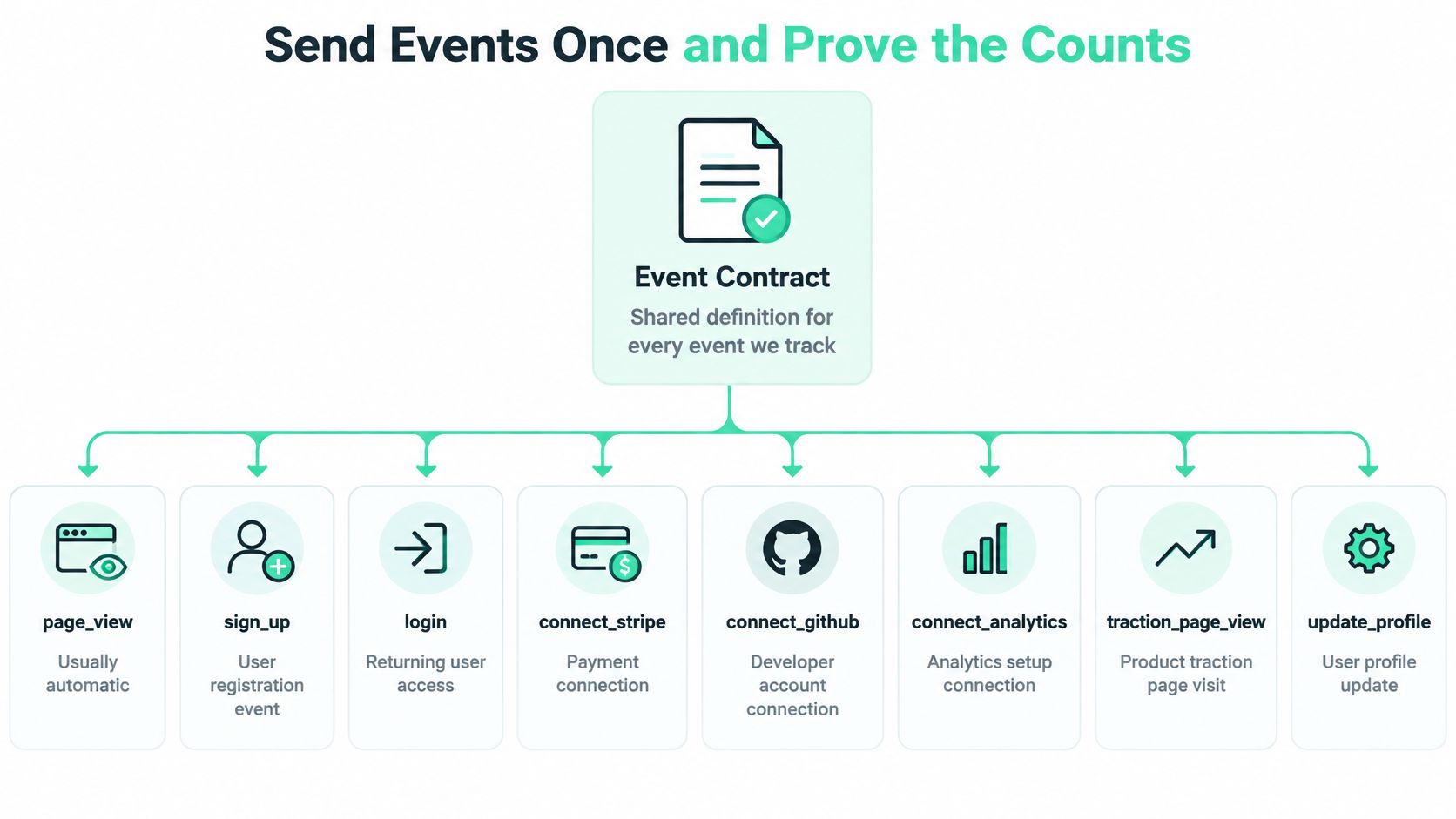
Start with a written event contract, not a collection of click triggers. The contract tells your developer, marketer, and future self what each event means, where it originates, and what would count as a duplicate.
A registration event should mean the application successfully created an account. It shouldn't mean someone clicked the submit button, encountered a validation error, and tried again. That distinction determines whether your funnel measures completed behavior or attempts.
Use this diagram as the event map, then document the implementation details beneath it.
Define success before building triggers
For each event, record the business definition, trigger, owner, parameter names, parameter types, and collection route. Specify whether the browser or server sends it. Don't let both independently claim responsibility for the same completed action.
A workable contract includes:
page_view: A page or application route becomes visible. Document whether the Google tag, enhanced measurement, or application router owns it.sign_up: The application confirms successful account creation. Include a registration method where appropriate.login: Authentication succeeds, not merely when the login screen opens.connect_stripe: The application confirms a successful payment-account connection.connect_github: Authorization completes and the product records the connection.connect_analytics: An analytics connection succeeds, rather than when the user starts authorization.traction_page_view: A public traction page renders, with a non-sensitive project identifier.purchaseor a documented contribution event: The payment system confirms the qualifying transaction.
Prefer recommended names such as sign_up over a private variation such as signup_done when the recommended event matches the action. Keep custom names stable and define whether a reconnection counts as a new connection.
Parameter types matter too. A monetary value should be numeric, while an identifier should remain a consistent string. Don't send email addresses, access tokens, payment details, or other sensitive information as event parameters.
Make payment events traceable
For a payment, use a unique transaction_id derived from the authoritative payment record. Include value, event-level currency, and applicable ecommerce item details. A stable identifier lets you compare analytics with the payment system without guessing from timestamps and amounts.
Google's guidance on measurement discrepancies identifies inconsistent transaction IDs, differences in page coverage, and incorrectly implemented tags as reasons reports can diverge, and recommends supplying currency and available ecommerce parameters for reliable comparisons.
Don't use the confirmation page load as proof that a fresh payment occurred. A customer can refresh, reopen a bookmark, or return through browser history. Trigger from confirmed transaction state and make delivery safe against repeated processing.
Say a contribution completes through hosted checkout. Your application receives confirmation, stores the provider's transaction identifier, and sends the agreed event through its designated collection route. Loading the thank-you page again must not create another business transaction.
Audit standard: A successful payment should have an explainable path from the provider's record to the application record to the analytics event.
Replay the customer journey
Begin with a deliberately labeled acquisition visit, such as a test email campaign. Continue through the landing page, registration, a successful data-source connection, the public page, and payment confirmation.
Keep Tag Assistant, GA4 DebugView, and your application logs open. Tag Assistant helps establish what executed; DebugView helps establish what GA4 received. Neither proves that the underlying business action happened, which is why the application and payment records matter.
- Record the expected sequence. Write down the actions you intend to complete and the events each should produce.
- Inspect each transition. Check event names, parameters, consent state, identifiers where permitted, and continuity through navigation.
- Match the business records. Compare the same audit window in application logs and payment records, accounting for time zones and processing delays.
- Repeat the failure paths. Try a rejected form, canceled checkout, refreshed confirmation page, and repeated authorization callback.
- Save the evidence. Keep the test outcome, deployment version, exceptions, and responsible owner in a short audit document.
Source and medium deserve inspection at the journey level. They don't need to appear as manually attached parameters on every custom event. Confirm that the resulting acquisition attribution remains coherent instead of assuming that a fired tag preserved it.
GA4 symptoms, causes, and the check that fixes them
| What you see | Likely cause | Fix |
|---|---|---|
| Realtime stays empty | Wrong Measurement ID, unpublished container, or blocked tag | Check the live URL in Tag Assistant; confirm the G- ID |
| Purchase counted twice | Missing or reused transaction_id, or multiple tags on the same success |
Send a unique transaction_id per transaction; remove the extra trigger |
| Session restarts at checkout | Cross-domain linker not set where supported | Configure supported measurement across the marketing and checkout domains |
| Stripe or PayPal is the source | Payment host treated as a referral | Add the relevant payment host to unwanted referrals |
| Users far below the app database | Consent denied, ad blockers, or no modeled data | Label the KPI observed; reconcile with first-party logs |
Separate missing collection from unavailable modeling
A technically correct implementation can still provide incomplete audience measurement. Google's GA4 troubleshooting guidance describes consent and blocked-tag checks and the substantial behavioral-modeling eligibility requirements, including at least 1,000 denied-consent events per day for seven days and at least 1,000 granted-consent daily users on seven of the previous 28 days.
Those are combined requirements, not alternatives, and meeting volume requirements doesn't guarantee immediate eligibility. A small product may therefore have working tags without meaningful modeled recovery.
Server events can help reconcile confirmed business actions, but don't assume they reconstruct every missing browser journey. If you also maintain advertising integrations, the Meta Conversions API guide is relevant to planning a separate server-event route and deduplication responsibilities.
Finish the audit by assigning each KPI a confidence note: observed in GA4, matched to application records, or modeled and directional. Include known exclusions and unresolved mismatches. A chart without that note can look more certain than the collection supports.
Publish Only the Counts You Can Defend
Use analytics differently depending on the decision you're making. A trend report, a funnel investigation, and a public traction claim don't require the same evidence, and they shouldn't inherit the same confidence label.
Match the source to the job
- Trend detection: Use GA4 to compare acquisition and engagement when collection, consent settings, and exclusions remain stable. Annotate tracking changes so they don't look like product changes.
- Funnel diagnosis: Investigate observed transitions you can connect to application outcomes. A registration drop deserves a product investigation only after you've ruled out a broken success event.
- Public proof: Support revenue and active-user claims with the systems that record those business facts. GA4 shouldn't be the sole authority when measurement gaps are material.
Google's behavioral-modeling documentation explains that declined analytics cookies leave gaps in directly observed behavior and that blocking tags until consent prevents behavioral modeling in GA4. Enabling Consent Mode therefore doesn't make every small product's audience report complete or comparable.
The same caution applies when you consolidate dashboards. If you're evaluating an SEO reporting tool, Keyword Kick's reporting discussion offers context for presentation choices, but combining charts doesn't reconcile their underlying counting rules.
Publish a coverage note alongside the metric
Label GA4-observed users separately from application-recorded active users. Define what active means, identify the reporting period, and explain exclusions. Only calculate a coverage rate when the numerator and denominator describe comparable activity.
For example, analytics visitors divided by logged-in active accounts isn't a meaningful coverage percentage. The groups differ before consent or blockers even enter the calculation. Reconcile payments through transaction identifiers, and distinguish total purchase revenue from recurring-revenue measures such as MRR.
A practical data-accuracy workflow should give every public KPI a definition, an authoritative source, an owner, and a reconciliation method. Source verification establishes where a figure came from; it doesn't automatically establish that the figure answers the reader's question.
At Fundl, we connect Stripe for revenue such as MRR, GitHub for commit activity, and analytics or other audience signals for audience size. We bring those connected metrics into a shareable project URL and refresh them automatically, so backers can inspect current source-verified figures rather than manual screenshots. Those metrics provide context, not a guarantee of delivery or future performance.
Before sharing a traction page, run the customer audit and write confidence notes for the KPIs you intend to publish. Connect only sources whose definitions you can explain and whose discrepancies you've investigated.
Fundl gives your connected revenue, shipping activity, and audience signals a shareable home with automatically refreshed, source-verified metrics. Run your Google Analytics audit, keep observed and modeled figures clearly distinguished, then visit Fundl to build a traction page around the numbers you can defend.