
You've edited the file, saved it, and run a commit command you copied from somewhere. You refresh GitHub. Nothing's there. So you run the command again, get a message about a clean working tree, and now you're stuck between work that exists on your laptop and a repository that shows nothing new.
That gap is the whole problem with a GitHub commit push. Two separate actions get spoken about as one, so beginners assume the first finished the job. It didn't. Once you separate them, the steps are short, the errors make sense, and most fixes take one command.
Table of Contents
- Commit and Push Are Two Different Steps
- Choosing How GitHub Authenticates Your Push
- How to Commit and Push a Change Step by Step
- Branches, Checks and Confirming the Push
- Common Push Errors and How to Fix Them
Commit and Push Are Two Different Steps
You're on a flight with no Wi-Fi. You fix a validation bug, add a test, and tidy a form label. You make three commits on your laptop. When you land and connect again, you run one push, and all three appear on GitHub at once.
A commit saves a snapshot of staged changes into your local .git history, and it works fully offline. A push copies commits you've already made to the remote repository on GitHub, usually named origin, where collaborators can see them.
Two Checks That Show the Gap
git statuslists modified and untracked files still sitting in your working tree, uncommitted.git log origin/main..HEADlists commits that exist locally but haven't reached GitHub yet.
If the second command prints commits, you've committed but not pushed. That's the airplane situation, just without the flight.
GitHub treats these as distinct measurements too. Its repository statistics API documentation separates commit activity from pushes, and one push may contain multiple commits, so a push is an upload event while a commit is a recorded change in history. GitHub also excludes empty commits from contributor statistics and merge commits from those calculations, which is another reason not to treat every Git operation as equal.
Practically, this means the commit happens on your machine and the push is when your work becomes visible and testable. That's also why authentication has to work before your first push, not before your first commit.
Choosing How GitHub Authenticates Your Push
Run git remote -v first. If the URL starts with https://, you're using HTTPS; if it starts with git@github.com:, you're using SSH. That tells you which credential Git will use when you push.
GitHub does not accept your account password for Git operations over HTTPS. You need a token, an SSH key, or a tool that manages sign-in for you.
| Method | Setup effort | Best for | Credential storage and renewal |
|---|---|---|---|
| Fine-grained personal access token over HTTPS | Create a token, scope it to one repository, and grant Contents read and write | Shared machines and CI jobs | Stored by a credential helper; create a new token when it expires |
| SSH key | Create an ed25519 key and add the public key in GitHub Settings | Your own laptop with long-lived access | Stored as a key file on disk; replace it if lost or rotated |
| GitHub CLI with gh auth login | Install gh, run login, and approve in the browser | Developers who want browser sign-in without manual tokens | Managed by gh; run login again if the session is revoked |
How to Pick One
For your own laptop, SSH keeps repeated pushes simple. Run ssh-keygen -t ed25519, then add the public key under GitHub Settings. Never share or upload the private key.
For a shared machine or CI runner, use a fine-grained personal access token scoped to a single repository, with Contents read and write access and an expiration date. Narrow scope limits what someone can access if the token leaks. Expiration also gives you a reason to review who still needs access. Token lifetime matters, as explained in how OAuth token refresh works in practice. An expired personal access token must be replaced with a newly generated one.
Practical rule: use SSH on your personal laptop, a scoped token on a shared runner, and GitHub CLI on a machine you rarely use. The CLI handles browser approval and credential storage for you.
You can change authentication later by updating the remote URL. For example, run git remote set-url origin git@github.com:owner/repo.git to switch from HTTPS to SSH. This changes neither your local commits nor the repository history. It only changes where the next push goes and how Git authenticates.
How to Commit and Push a Change Step by Step
Work through these in order. Each step either prevents a specific mistake or gives you a check that the previous step did what you expected.
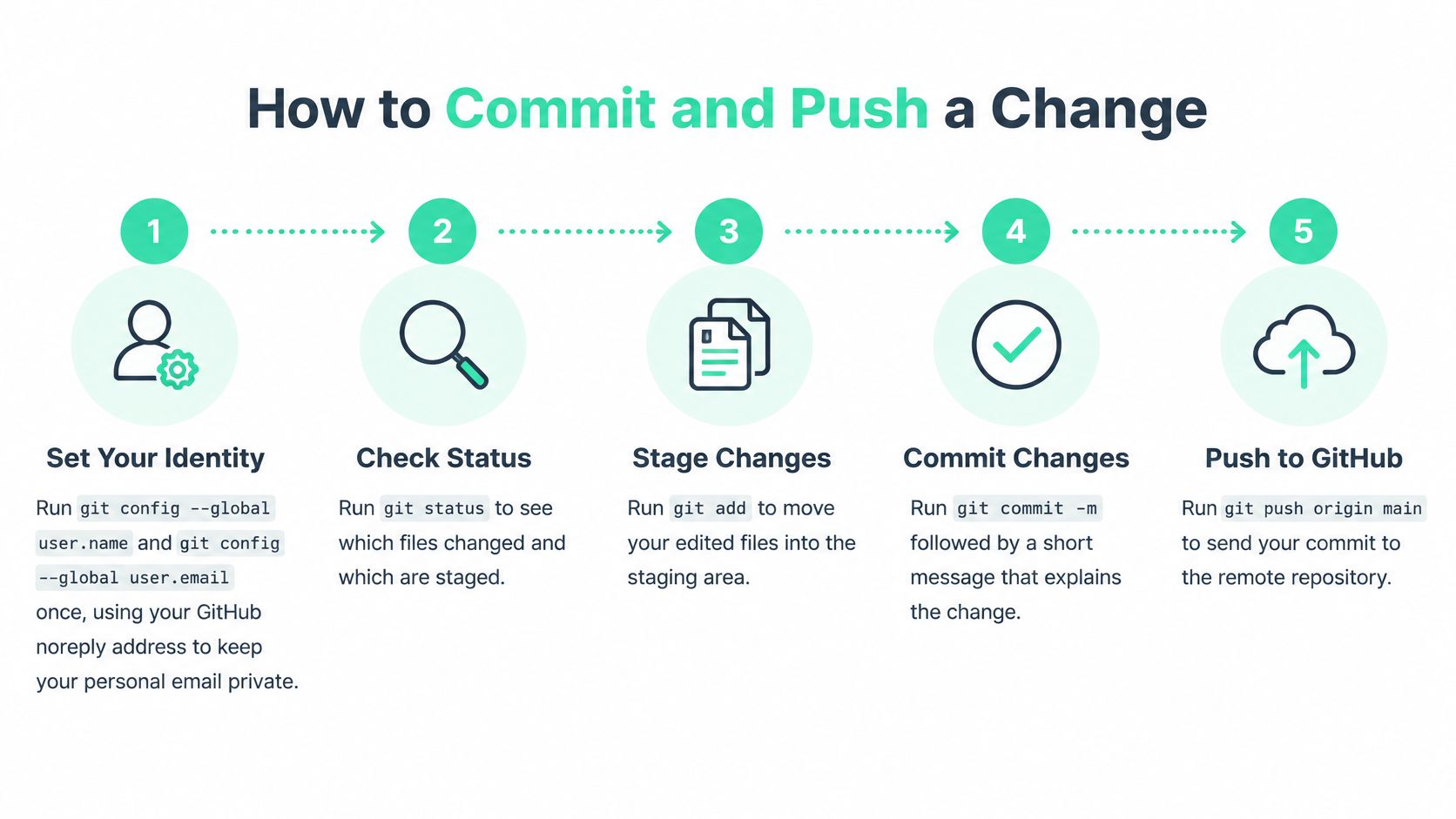
Set your identity once. Run
git config --global user.name "Your Name"andgit config --global user.email "you@example.com". Use your GitHub noreply address if you don't want your personal email attached to public commits. Skipping this gets you an author identity error later, usually at the worst moment.Check where you are. Run
git statusand read the branch name at the top before anything else. It shows modified and untracked files, and it stops you committing hotfix work onto the wrong branch.Read the diff. Run
git diffand scroll through every change. This step is where you'll catch a stray debug line, a half-finished edit, or a.envfile that should never be committed. Committing before reviewing the diff is how secrets end up in history.Run tests and the linter now. If they fail locally, stop and fix them. A failing check after the push costs you a round trip, a new commit, and sometimes a blocked merge.
Stage only what you intend to ship. Run
git add path/to/filefor specific files, orgit add -pto approve changes hunk by hunk inside one file. Avoidgit add .as a habit, because it can pull in build output, local notes, and anything else sitting in the folder without warning. Rungit statusagain and confirm the staged list is exactly what you reviewed.Commit with a message that says what changed. Run
git commit -m "Fix empty email validation on sign-up". Keep the summary short, use the imperative mood, and skip messages like "fix stuff" or "update". Three months from now, that message is the only explanation attached to the change. A good test is finishing the sentence "this commit will" with your message.Push, and link the branch the first time. Run
git push -u origin main. The-uflag links your local branch to the remote one, so every later push on that branch is justgit push. Forgetting-uon a new branch is what produces the no upstream branch fatal error that confuses so many first-time users.Confirm on GitHub. Open the repository and check that your commit hash and message appear at the top of the commit list. If they're there, the GitHub commit push worked. If the hash matches your local
git logoutput, you're looking at the same commit, not a coincidence.
If
git statussays your branch is ahead of origin by one commit, you have not pushed yet, no matter what you remember typing.
Notice where the push sits in that sequence. Seven steps happen locally, and only one touches GitHub. When something fails, that tells you where to look.
Branches, Checks and Confirming the Push
Pushing straight to main works until it doesn't. A topic branch keeps unfinished work off the branch everyone depends on, and it costs you two commands. Run git switch -c feature/signup-validation to create and switch, then git push -u origin feature/signup-validation to publish it. After that, a pull request is where the work gets reviewed and merged.
| Workflow | Best for | Main risk | What it requires |
|---|---|---|---|
| Commit and push straight to main | Solo prototype with no users yet | A bad commit reaches the live branch immediately | Nothing beyond your own review |
| Topic branch pushed to origin | Small team or any work you want reviewed | Branch drifts from main and needs a merge | Pull request and a merge step |
| Topic branch with a pull request and required checks | Production apps and shared repositories | Slower merges when checks are flaky | Passing status checks and an approved review |
| Protected main with direct pushes blocked | Client work and libraries used by others | Blocked pushes confuse contributors who expect direct access | Branch protection rules and a pull request for every change |
A Successful Push Is Not the Finish Line
After pushing, run git status and look for wording that your branch is up to date with origin. After a merge, run git log --oneline origin/main -3 to confirm your commits landed on GitHub's main. A push that succeeds only proves the transport worked. GitHub's documentation on protected branches supports a stricter definition, where a merge requires checks in a successful, skipped, or neutral state, and all required checks must satisfy the rule before the branch changes.
That gap between local and remote is where teams get surprised. Your tests pass on your machine, then a changed dependency, a different operating system, a generated file, or a wrong workflow trigger fails the remote run. Treat CI validation plus an accepted merge as the success criterion, not the push itself.
Making the Push Trigger the Right Checks
A GitHub Actions workflow using the push event can be limited to selected branches, so branches: [main, 'releases/**'] stops unrelated feature branch pushes from running it. The workflow syntax reference also covers branches-ignore, tags, and tags-ignore, plus GITHUB_REF and GITHUB_SHA, which let you record the exact revision tested instead of a mutable branch name.
Three pitfalls recur. A filter that excludes the branch holding the workflow file stops it running at all. A tag push isn't a branch push, so release workflows and commit workflows need separate thinking. And a workflow file sitting in the repository proves nothing, since the event and branch filters still have to match. If you're tracking delivery performance, measuring GitHub activity with DORA metrics works better when commit activity and release tags aren't blended into one number.
This is also where a tool like Fundl fits for founders, since it connects to a GitHub repository and displays live commit activity such as frequency, recency, and contributor count. Whether or not you publish those numbers, label them precisely. Commits per week and pushes per week answer different questions.
On main, require the status checks so nothing merges on a red run. Then delete merged branches with git branch -d feature/signup-validation to keep the branch list readable.
Common Push Errors and How to Fix Them
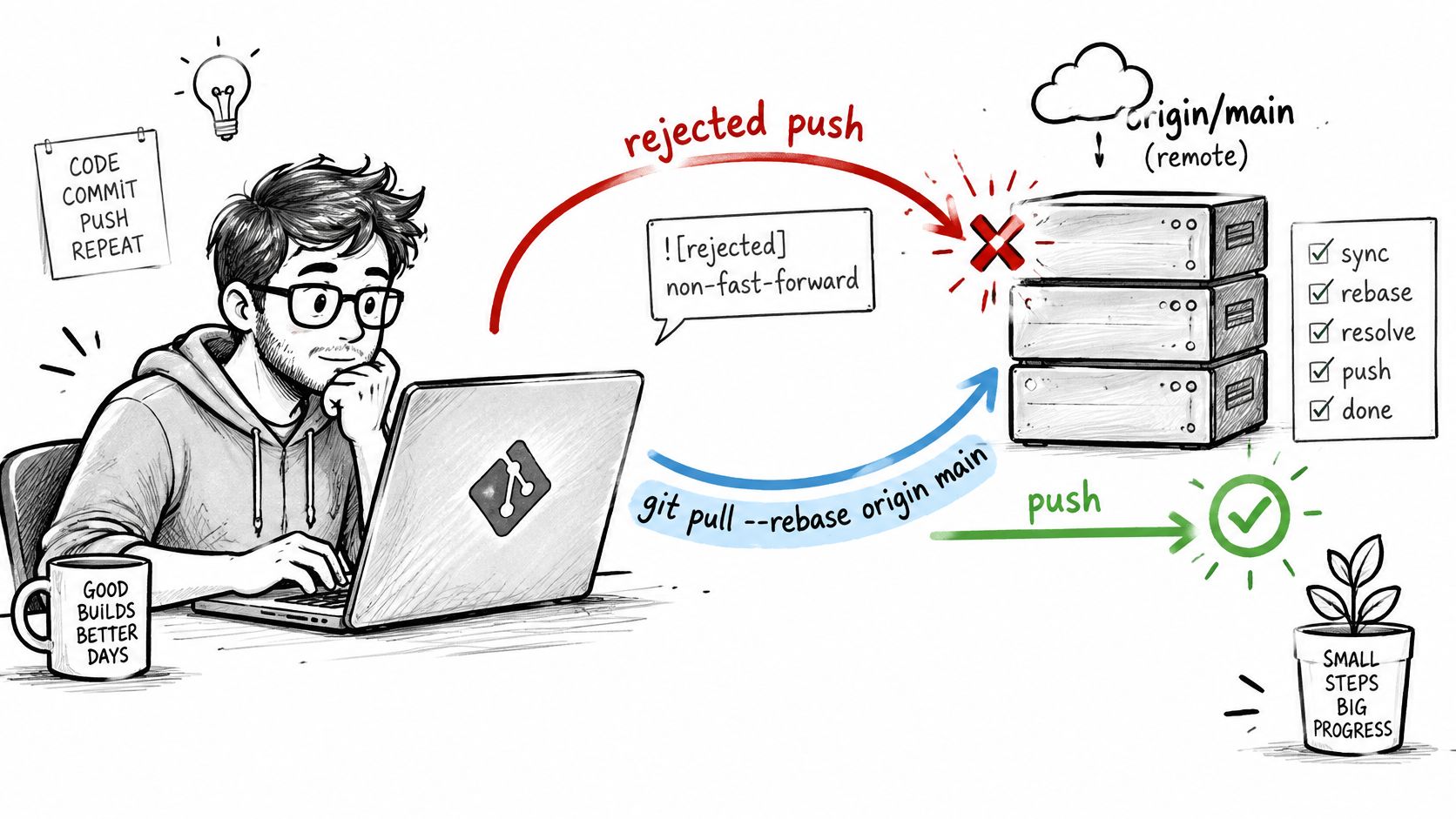
The error you'll see most is a rejected push. It doesn't mean your commit is broken. It means GitHub has commits you don't have locally, and Git won't overwrite them. Fix it with git pull --rebase origin main, resolve anything that surfaces, then push again.
The sequence below shows that recovery from rejection to a clean push.
| Error message | Likely cause | Fix |
|---|---|---|
| ! [rejected] main -> main (fetch first) | Remote has commits you do not have locally | git pull --rebase origin main, then git push |
| Permission denied (publickey) | SSH key not added to GitHub or not loaded in ssh-agent | Test with ssh -T git@github.com, then add the key with ssh-add |
| remote: Permission to owner/repo.git denied | Token lacks write access or belongs to the wrong account | Create a token with Contents read and write for this repository |
| fatal: The current branch has no upstream branch | Branch never pushed with -u | git push -u origin branch-name |
| src refspec main does not match any | No commits on the branch yet, or wrong branch name | Commit first, then check the name with git branch |
| Author identity unknown | user.email not set on this machine | git config --global user.email with your noreply address |
| Push blocked by push protection (secret detected) | Credential-like value in a file or commit being pushed | Remove the value, revoke it if real, amend or rewrite history, then push again |
Authentication failures come next in frequency, and they're almost always a missing SSH key, a key that isn't loaded, or an expired token. A protected branch rejection is different. It's working as configured, so the fix is opening a pull request rather than pushing harder.
This walkthrough shows the rebase fix being applied to a rejected push in a real terminal.
When Push Protection Blocks You for a Secret
This one deserves more than a table row. GitHub's push protection documentation explains that scanning can block command-line pushes, web UI commits, file uploads, and REST API requests, and you must remove or remediate the secret before retrying.
Work through it in this order. Decide whether the match is a false positive or a real credential. If it's real, revoke it immediately at the provider, before you touch Git, because removing it from the file doesn't make a live key safe. Then remove the value from your current changes, and check whether earlier commits in the same push also contain it, since those need amending or rewriting too. Only then push again.
A successful push does not prove the repository is safe, since GitHub notes a scan that times out can let the push proceed and scan afterward.
Don't bypass the block just to get unblocked. That turns a caught mistake into a published one, and history rewriting after the fact is far more painful than fixing the commit before it leaves your machine.
If you're shipping in public and want that steady commit history to count for something beyond your own log, Fundl lets you connect GitHub, Stripe, and analytics to a shareable traction page where backers see live, source-verified metrics instead of screenshots. Your weekly commits become evidence of consistent shipping that updates on its own, right alongside revenue and user numbers. Set up your page at Fundl and let the work you're already pushing make the case for support.